End User Guide: Firm Admin
Firm Admins (and permitted staff) work at /admin/... after login.
If a Super Admin impersonates your firm, you will see an orange banner at the top. Normal firm users do not see that banner.
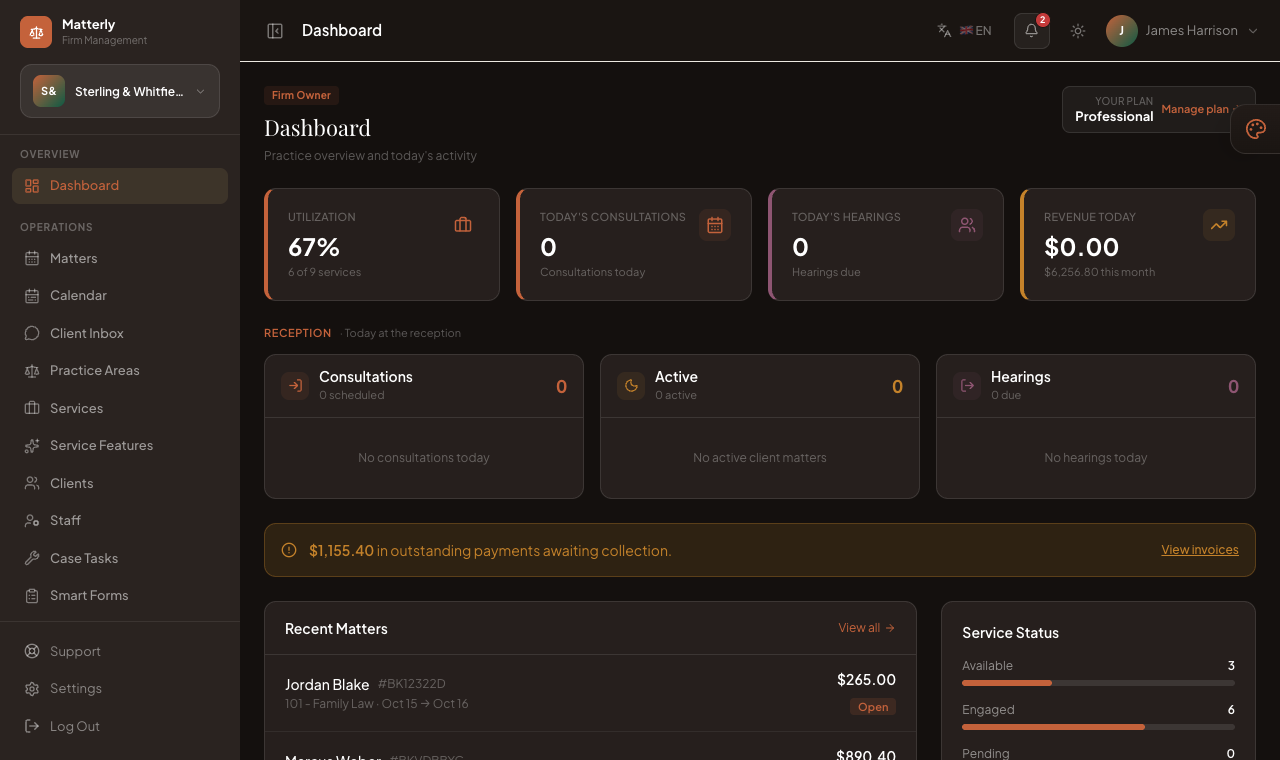
Firm Admin Dashboard: key figures, recent matters, the reception day sheet and quick actions.
#After you log in
- Open
/login and enter your firm email and password.
- You arrive at Dashboard.
- Use the left sidebar for operations, finance, AI, and marketing.
- Staff only see menus allowed by their permissions.
#Dashboard
URL: /admin/dashboard
Purpose: Today’s snapshot of the practice.
| Card / section |
Meaning |
| Active Matters |
Matters confirmed or in progress |
| Today’s Consultations |
Consultations scheduled for today |
| Today’s Hearings |
Hearings due today |
| Revenue Today |
Money recorded today (and month context) |
| Recent Matters |
Latest matters with client, service, dates, amount, status |
| Reception day sheet |
Today’s consultations, active matters and hearings |
| Quick Actions |
Shortcuts: New Matter, New Client, Smart Forms, AI Tools, Case Tasks |
#Typical actions
- View all on recent matters → Matters list
- Open Case Task Board → Case Tasks
- + New Matter / + New Client → create forms
#Matters
URL: /admin/matters
Purpose: Manage all client matters.
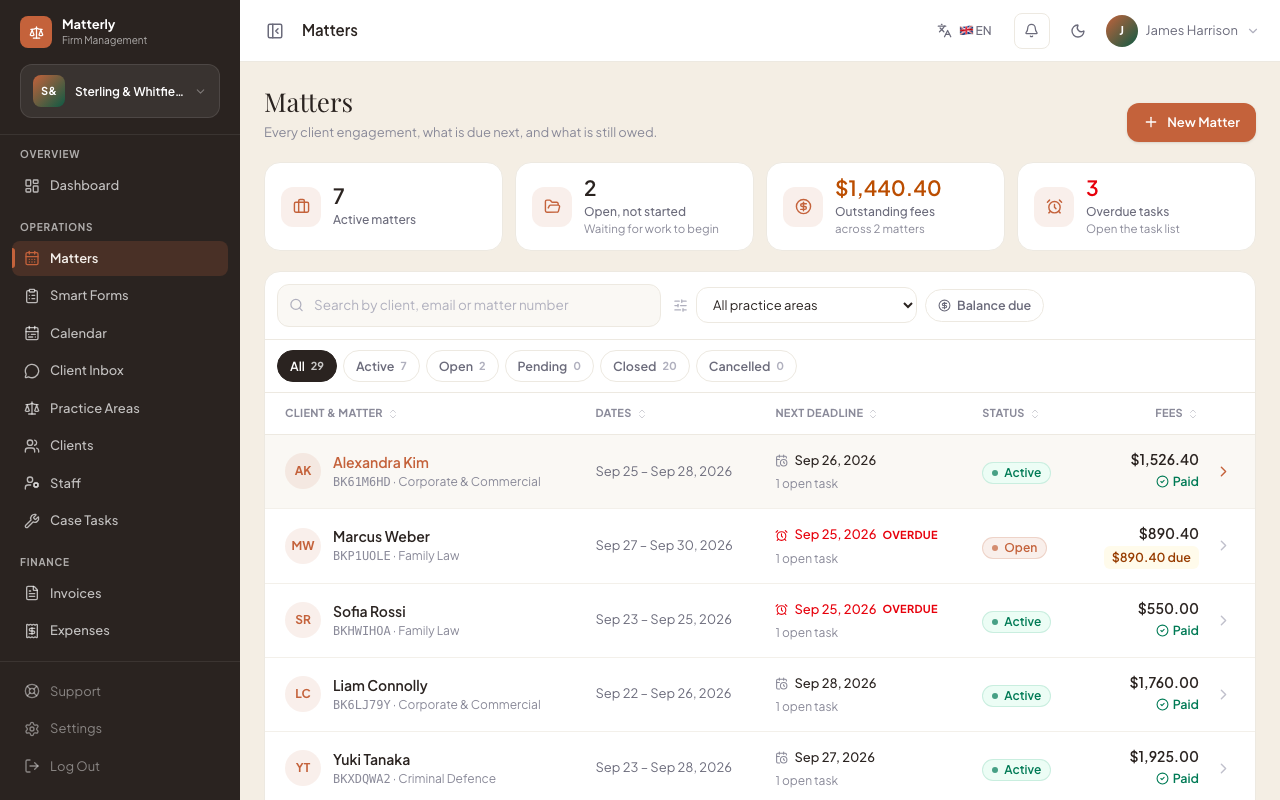
#What you see
- Four cards: Active matters, Open, not started, Outstanding fees, Overdue tasks (click one to filter)
- Search by client, email or matter number (as you type), filters for practice area, balance due and status (with counts)
- Each row: client, matter number (
MAT-…), practice area, dates, next deadline, status and fees (Paid, or amount due)
#Actions
| Action |
When to use |
| New Matter |
A new matter entered by staff |
| Click a row |
Open the matter workspace |
| Edit |
Change dates, client or practice area (not after close/cancel) |
| Mark active |
Work begins (status must be Open); the matter becomes Active |
| Close matter |
Work is finished (status must be Active) |
| Cancel |
Stop the matter; optional reason |
Details: Matters. Full lifecycle: Matter Workflow.
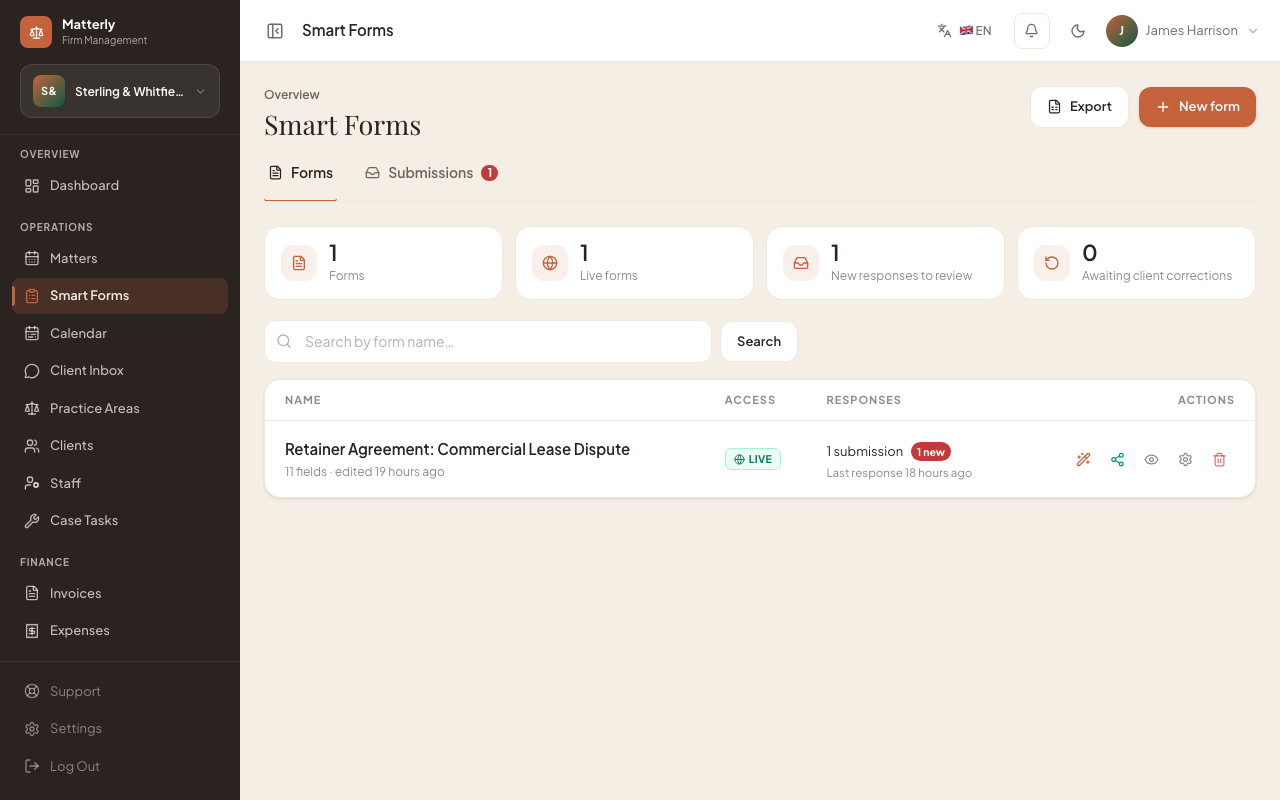
URL: /admin/smart-forms (second item in the sidebar, under Matters)
Purpose: Legal documents clients fill in and sign online.
#Actions
| Action |
What it does |
| New form |
Draft with AI from a description, or start blank |
| Builder |
Drag fields into the document, edit the wording, Save form |
| Share |
Secure link (on/off, PIN, expiry), email, or send from a matter |
| Settings |
Name, intro note, submit label, staff notifications |
| Submissions |
Read, download PDF, link to a matter, Accept, Archive, Request changes |
| Changes |
For resubmitted responses: each round's request and every answer that changed |
Full guide: Smart Forms.
#Office Inbox (website chat, WhatsApp, texts, contact form)
URL: /admin/office (the Inbox group in the left column)
Who: staff with the Office and Matters permissions. Staff with only Matters see the same chats on the older Client Inbox page.
When a visitor on your website clicks Talk to a person (or writes something like "I want to talk to a human"), the AI assistant steps aside and the chat appears at the top of Inbox with a red dot and how long it has waited. The visitor may leave a name and an email or phone first; they can skip it.
- Alerts. A red number on Office in the sidebar, the same number in the browser tab title, a soft chime, and (if you click Enable desktop notifications in the Inbox group) a system notification that opens the chat. Turn the chime off with Sound on / Sound off in the same group. Staff with the Matters permission are told when a chat starts waiting; once someone has taken it, only that person is told about new messages.
- No one answered? After 3 minutes the firm's leadership gets one email with a link to the chat. A chat left outside office hours (set under Settings) is shown as an Offline message and never alerts or emails urgently.
- Take over to answer. The visitor sees your name and replies appear in their chat window within a few seconds. Release puts the chat back in the queue; Close ends it (the visitor is told and can start a new one).
- Ask Case Assistant for a draft writes a reply from the conversation for you to confirm, edit or dismiss. Nothing is sent until you confirm. It costs one AI credit.
- Create client / Create matter turn the visitor into a client record (from the contact details they shared) and open a matter in a practice area you choose; the chat is linked to both.
- WhatsApp messages and texts that need a person, and contact-form enquiries, appear in the same Inbox with a WA, SMS or FORM tag.
The AI answers website chat visitors for one AI credit per reply; with no credits left it falls back to the free rule-based answers.
#Client Inbox
URL: /admin/inbox
Purpose: Read and reply to client conversations (website chatbot and WhatsApp when connected). The Office Inbox above is the place to handle them; this page stays for people without the Office permission.
#What you see
- Conversation list (priority for messages that need a human)
- Thread view with history
- Connection status for WhatsApp (if configured)
#Actions
- Open a conversation
- Reply to the client
- Hand off from bot to staff when needed
Configure WhatsApp under Settings → Integrations (firm) and platform WhatsApp under Super Admin → Settings.
#Practice Areas
URL: /admin/practice-areas
Purpose: Define the practice areas you offer and their consultation fees.
#What you manage
- Name, description, consultation fee
- Photos / media
- Active / inactive
#Workflow
- Create a practice area (e.g. Family Law).
- Set its consultation fee.
- Add images.
#Clients
URL: /admin/clients
Purpose: Client profiles: a contact book and matter history for your firm.
#What you see
- Searchable client list
- Contact details, matter count, loyalty points (if used)
#Actions
- Create / edit client
- Open client profile and related matters
- Start a matter from client context when available
#Staff
URL: /admin/staff
Purpose: Firm users and what they can access.
See Staff & Permissions.
#Case Tasks
URL: /admin/case-tasks
Purpose: Track case work and deadlines across your matters.
#What you see
- Pending tasks, most urgent first
- The matter each task belongs to
- Assignees and scheduled dates
#Actions
- Create a task (Filing, Document Review, Research, Client Call, Court Prep)
- Assign staff
- Start, complete or cancel tasks
#Invoices
URL: /admin/invoices
Purpose: Client invoices (bills for matters and disbursements).
See Invoice Workflow.
#Expenses
URL: /admin/expenses
Purpose: Track firm operating costs.
#Actions
- Add expense (category, amount, date, notes)
- Edit / delete
- Review month/year totals
#Reports
URL: /admin/reports
Purpose: Practice performance summaries.
See Reports & Settings.
#Billing
URL: /admin/billing
Purpose: Manage what your firm pays LawyerPara for its subscription (this is separate from client invoices).
#What you see
- Current plan, status, billing cycle, amount, and next renewal date
- The card on file the platform charges (brand and last 4 digits)
- Auto-renew toggle
- Your platform (subscription) invoice history
#Actions
| Action |
Effect |
| Add / update card |
Opens the payment gateway's secure hosted page to save a card |
| Remove card |
Deletes the saved card |
| Auto-renew |
Turn automatic subscription charging on or off |
#Support
Where: click your name or avatar at the top right and choose Support.
URL: /admin/support
Purpose: Raise and track support requests to the platform team.
#Actions
- Create a ticket (subject, priority, category, message)
- Follow the conversation and see status updates on each ticket
- Receive email + in-app notifications when support replies or resolves your ticket
#AI Assistant
URL: /admin/ai
Purpose: On-demand AI writing and insights (uses firm AI credits).
- Service description generator
- Email writer
- Review response helper
- Marketing copy
- Revenue insights
- Fee Advisor: suggests a fee for a practice area and dates, based on your current workload
- Ask Your Data: answers plain-English questions about your firm's numbers
- Review Insights: summarises all client reviews into what clients love and what to improve
The badge on the menu shows remaining credits. Top-ups come from Super Admin → AI Credits.
#AI Staff
URL: /admin/ai-staff
Purpose: Semi-automated agents (reviews, client comms, case-tasks, revenue).
#Actions
- Enable agents and set budgets
- Review pending drafts
- Approve or dismiss suggestions
- Optionally allow auto-send where offered
Always review client-facing drafts before approving.
#Knowledge Base
URL: /admin/knowledge-base
Purpose: The documents the AI chatbot reads to answer client questions. You upload your own information (policies, FAQs, directions) and the chatbot answers from it.
#Actions
- Upload / manage knowledge documents
- Review unanswered questions / gaps
- Reindex after major content changes (this re-reads your documents so the chatbot uses the latest version)
#Website Builder
URL: /admin/website
Purpose: Build and publish the public firm site.
#Actions
- Create pages
- Edit blocks in the builder
- Use AI page generation from a short brief (if credits allow)
- Publish or keep as draft
- Toggle whether the site is live / direct
Clients visit /firm/{your-slug} (or your custom domain when configured).
#SEO & AI Visibility
URL: /admin/seo
Purpose: Check how well search engines and AI answer engines can find, read and quote your website, and see whether AI answers mention you correctly.
Plan: needs the SEO & AI Visibility feature. Without it the menu item shows a lock and links to Billing. Staff need the Website permission.
The page has five tabs: Overview, AI visibility, Answer nodes, Files and Settings.
#Overview
- Your hosted LawyerPara site is registered automatically and never counts against your plan. You can add your own external website if your plan allows it; tick I own this site or have permission to audit it.
- Run audit checks up to 40 pages: whether they load, can be indexed, have titles and descriptions, link correctly, carry structured data, and whether your name, phone, address, hours and practice areas match what you entered in Settings.
- Each site shows two scores out of 100: SEO and AI readiness. Scores only count checks that actually ran; the ledger under each score says how many were checked, not checked, and how many pages failed to load. A score is a LawyerPara diagnostic, not a search or AI ranking.
- Needs attention lists the five most serious open problems across your sites.
#The report
Open a run to see findings grouped by category. Filter by status, severity or category. Expand a finding for the evidence, why it matters, how to fix it and how to check the fix. Where we can, we give you the fix: a JSON-LD or llms.txt snippet to copy for an external site, or a link straight to the page in the Website Builder for your hosted site.
- Pages tab: every page we looked at. Tick pages and choose Import to knowledge base to let your chatbot answer from them (2 AI credits per page; unchanged pages are skipped and free). With auto sync on, changed pages are re-imported after each audit and missing ones are marked stale.
- Performance tab: Google PageSpeed lab and field data when the platform has a PageSpeed key. Shown, never scored.
- Export CSV / JSON downloads the findings.
- If AI tools are on and you have credits, each audit ends with a one-line AI diagnosis (1 credit). The FAQ finding can draft an FAQ from your own facts (3 credits); check every answer before you publish it.
#AI visibility
- AI crawler access lists each AI crawler by purpose: AI search, web search, fetches a person asked for, and model training. Blocking an AI search crawler is a failure; training crawlers are only reported.
- AI readability checks that your firm facts are written out as text, that hours and practice areas are on the page, and that there is FAQ-style content.
- AI answer sampling (Professional plan and above) asks AI search engines questions and records whether the answer cited your site, mentioned your name, or only retrieved your page. Add up to 20 questions per site. Discovery questions must not name your firm; brand questions must, and freeze your current phone, address, hours, practice areas and fees so we can flag answers that state them differently. Possible differences are highlighted for you to confirm; we never mark them as wrong automatically.
- Rates appear only when a group (engine × intent × language) has at least 10 successful answers. One answer is not a ranking, and "recommended" is only ever your own mark.
- Each answer uses one sample from your monthly allowance; a retried answer uses another. The platform's daily ceiling can skip samples; skipped samples are not charged.
#Answer nodes
URL: /admin/seo/nodes
Plan: needs AI answer nodes and the Website Builder; the number of answers is limited by your plan.
Answer nodes are short question-and-answer pages for AI assistants, published under your hosted site at /nodes. They carry a disclaimer and are kept out of normal search by default (noindex, follow).
- Generate answers builds drafts from your firm profile, practice areas, policies, pages, knowledge base and the questions your chatbot could not answer. Drafts are free and every sentence cites your own data. Tick AI polish to have each answer rewritten (2 AI credits per answer); if credits run out, the free draft is kept.
- Review: staff with the Website permission can edit and submit for review. Publishing, unpublishing, rejecting and deleting need a firm admin, partner or office manager. Editing a published answer takes it back to draft. Each publish is saved as a version you can restore.
- Freshness: when you change the source (for example a practice area fee), the answer is rebuilt within minutes and stays published. Answers whose source was removed go offline.
- Quality shows readiness and extractability checks and offers a free optimizer. Test citations asks the answer's question on the AI engines (uses samples).
- Settings turns the pages on, sets the hub title, the indexing policy, llms.txt / llms-full.txt / sitemap inclusion, automatic rebuild age and crawler logging.
- AI traffic shows which AI crawlers fetched your answers, coverage, answers not crawled yet and visits referred by AI assistants. Ordinary visits are never logged.
#Files
Files for search engines and AI crawlers.
- Hosted site:
llms.txt, llms-full.txt, Markdown copies of pages (/your-page.md) and practice areas, sitemap.xml and robots.txt are published for you. On a subdomain or custom domain you can block model-training crawlers in robots.txt; search crawlers always stay allowed. When the platform has an IndexNow key, publishing or updating a page tells search engines straight away.
- External site: build the same set of files with your own website as the base address, copy them or download a ZIP, then Check files on the site to compare what is live. To use IndexNow for an external site, place the key file at its root and verify it first.
#Settings
Per site: label, audit and sampling schedule (weekly, monthly or off), extra URLs to include, paths to skip, and your booking link. Scheduled runs use your monthly allowance; if it is used up the run is skipped and you are told once that month.
#Para Pilot
URL: /admin/para
Purpose: Para is your firm's operations assistant. Every working day it checks what needs doing, makes a plan, carries out the work it is allowed to do, waits for a person wherever a client or the public would see something, and writes a report at the end of the day.
Plan: needs the Para Pilot feature (Professional and up). Without it the menu item shows a lock and links to Billing. Staff need the Para Pilot permission; deciding review items needs Approve Para drafts; release modes, playbooks and evidence exports need Govern Para. Firms on Para see AI Staff inside Para's review list.
#Today
- Start of day (07:30 on workdays, your firm's time zone, changeable in Settings): Para runs its morning checks — unanswered reviews, stale matters, today's agenda, SEO and AI-visibility cycles, the knowledge base, yesterday's leftovers, scheduled automations, credits — and writes Today's plan. Read-only work it may do on its own is queued; everything else appears as a suggestion you can Add to today or Ignore for 7 days. An optional AI paragraph (1 credit, can be switched off) tops the plan.
- Today's queue shows every item with its priority (Urgent, Today, Scheduled, When idle), where it came from (morning check, schedule, event, added by hand, @Para) and its progress. Para runs up to the plan's number of items at once; items waiting for a review do not take a slot. Urgent items jump the queue; outside working hours only urgent internal work runs.
- Add a task lists only what you may use. Pick a capability, fill its settings, choose a priority and, if you like, a start time.
- Row menu: Move to the top, Make urgent, Skip today, Try again (blocked or failed items), View run details.
- Leadership can Pause outgoing today (drafts still go to review; nothing reaches a client until resumed) and Stop Para entirely.
- End of day: when everything has finished — or after 17:00 when only reviews are left, or at the 20:00 cutoff — Para writes the daily report and closes the day. Unfinished work comes back in tomorrow's plan; work arriving after the close still runs and appears in tomorrow's report.
#@Para
Type a request or tap a suggestion. Para can make or refresh the plan, report what was done, look up a task's status or why it failed, change a priority, pause outgoing messages (leadership), and prepare a task, a saved workflow run, a simple new workflow or a correction. Anything that creates or changes work comes back as a confirmation card showing the scope, who it runs as, budget, approval points and success criterion; only the person who asked can confirm it. Each answer costs 1 AI credit. Para can only use capabilities you yourself may use.
#Reviews
Everything Para wants to send to a client or publish waits here, together with AI Staff drafts. Each item shows where it came from, the evidence and checks, what approving will do and whether it can be undone. You can Approve, edit the text and approve, Reject (choose a reason), or Ask for a redo with a note (up to three times). Approve checked items approves several items of the same step at once; items Para is unsure about are always decided one by one. Publishing (review replies, answer nodes, page details) needs leadership. Items past their deadline get one reminder and are skipped 24 hours later — never approved automatically.
#Automations
Tasks, workflows and event rules, with ten ready-made templates (new review replies, low-review alert, new matter intake, overdue invoice follow-up, weekly website audit, past-client care, AI visibility monthly, answer node backfill, stale matter check, weekly promo images).
- The editor lists steps top to bottom. Each step takes its input from the step above, an earlier step, what started the run, or nothing; a connection whose data does not fit is marked red and cannot be saved. Control steps: human review, wait, notify team, AI summary, create internal task, rule check, ask a person, condition.
- Triggers: once, daily, workdays, weekly, monthly (your firm's time) or when something happens — a new review, a new matter, a matter moving stage, a form submitted, an invoice becoming overdue, a payment, an SEO audit finishing, an answer node expiring. Event rules fire at most once per object per day, can have a daily limit, and bursts are merged into one item.
- Release modes: every new or changed automation starts in Shadow (it reads and drafts but changes nothing). After 20 representative runs with at least 95 % success, complete evidence, no serious errors and few human edits, a Para governor can promote it to Assisted (the normal mode; client and public effects still wait for a review) and, on Enterprise, Autonomous. Repeated failures pause it automatically.
- Switching on an automation that sends to clients or publishes needs a governor; others save it as a draft.
#Activity
Every run keeps its task contract (goal, scope, allowed capabilities, who it runs as, deadline, budget, approval points, success criterion), each step's policy decision, inputs, outputs, verification and receipts, and a tamper-evident history. Runs can be paused, resumed, cancelled, and rerun from the failed step (finished steps are not repeated or charged again). Governors can download an evidence pack.
#Reports
Daily reports, "so far" snapshots, weekly reports (Mondays) and monthly reports. Each lists what was done and from where, outputs (replies, messages queued and skipped, tasks, pages, images), measured effects — only what the system can verify, otherwise "No data yet" — people's decisions and exceptions. Export daily reports as CSV.
#Settings
Assistant name, start of day, working hours and workdays, close times, plan confirmation, AI paragraphs, morning checks (on/off, run / suggest / remind, thresholds), daily AI budget and per-run approval threshold, review deadline, client message limits (per day; per client per week, default 2), notifications, and the emergency stop. Governors also set autonomy: internal changes needing confirmation, and which low-risk public effects may skip review in autonomous mode. Firm methods and preferences (playbooks) guide Para's drafts once published; repeated rejections become proposals for a governor to publish. Goals track a metric over time in plans and reports.
#Languages & Currency
URL: /admin/localization
Purpose: Multi-language and multi-currency display for the public site.
#Actions
- Enable locales and currencies
- Set exchange rates
- Edit translation strings
- Optionally use AI to help translate
#Email Campaigns
URL: /admin/email-campaigns
Purpose: Marketing emails to client audiences.
#Actions
- Create a campaign
- Choose audience (e.g. all clients, recent, returning)
- Send and review open-rate style stats
Requires working SMTP (platform settings).
#Reviews
URL: /admin/reviews
Purpose: Collect, moderate, and reply to client reviews.
#Actions
- List / filter reviews by status (all, pending, published, hidden)
- Add or edit a review record (name, rating, source, comment, reply, status)
- Moderate: reviews left by clients on your website arrive as Pending.
Approve (publish) a review to have it appear on your site and count toward your
public star rating, or Hide spam/inappropriate ones. Replying also publishes it.
- Reply to clients (your reply is shown publicly on the review)
- The Public rating KPI is the average of your published reviews only, and it
shows how many published reviews it's based on
#Settings
URL: /admin/settings
Purpose: Firm-specific configuration (general, tax, policies, payments, integrations/WhatsApp, theme, domain, API access, notifications). Each tab has a save bar showing whether there are unsaved changes.
Details: Firm Settings and Reports & Settings.
#Related pages