End User Guide: Super Admin
After installation, sign in at /login with your Super Admin account. You land on Platform Overview.
The left sidebar groups platform tools. This chapter explains each menu that exists in LawyerPara.
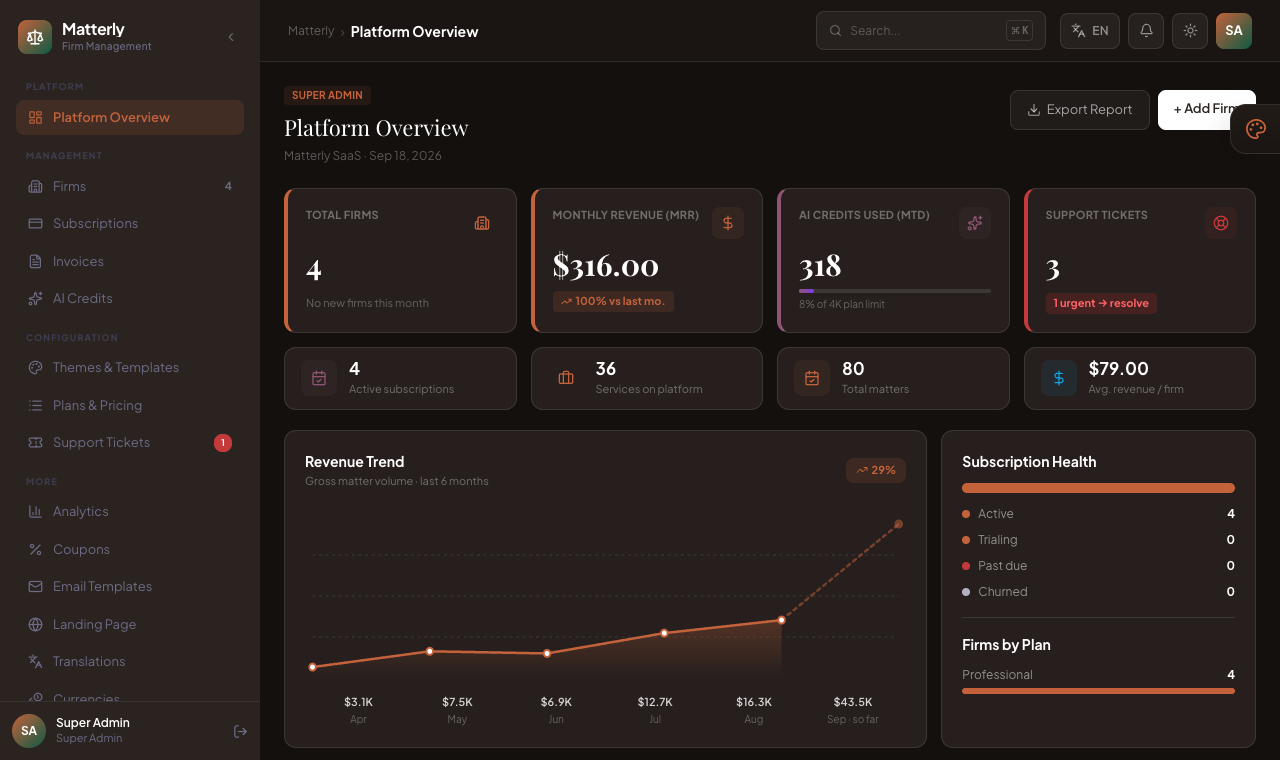
Platform Overview: KPIs, charts, and recent firms.
#Signing in and layout
| Area |
What it does |
| Left sidebar |
Navigate between platform pages |
| Breadcrumbs |
Show where you are (e.g. LawyerPara → Platform Overview) |
| Export / Add buttons |
Page-specific actions in the header |
| Profile / Log Out |
At the bottom of the sidebar |
| Impersonate |
From Firms, opens a firm panel as that firm’s admin |
URL: /super/dashboard
Purpose: See health of the whole SaaS at a glance.
#What you see
- Total Firms: how many firms are on the platform
- Monthly Revenue (MRR): recurring subscription revenue
- AI Credits Used (MTD): usage vs plan limits
- Support Tickets: open / urgent counts
- Smaller tiles: active subscriptions, services on platform, matters, average revenue per firm
- Revenue trend chart (recent months)
- Subscription health (active, trialing, past due, cancelled)
- Firms by plan
- Recent firms table (name, plan, services, status, MRR, joined date)
| Action |
Use it to |
| Export Report |
Download a CSV of overview metrics |
| Add Firm |
Jump to create a new firm |
| View all (recent firms) |
Open the Firms list |
#Firms
URL: /super/firms
Purpose: Create and manage every firm (tenant) on the platform.
#Features
- Search and filter firms (e.g. by status or plan)
- Summary KPIs (total, active, trial, churn, MRR)
- Table of firms with admin email, plan, services, status, MRR
Typical fields:
- Firm name, slug, contact details, city/country
- Plan and trial / subscription options
- Initial AI credits (when creating)
- Firm admin name, email, and password (on create)
#Workflow: add a firm
- Click Add Firm / Create.
- Fill firm details and choose a plan.
- Enter the firm admin’s login details.
- Save.
- LawyerPara sends a Firm Welcome email if SMTP is configured.
- Optionally click Impersonate to open that firm’s admin panel.
#Other actions
| Button |
Effect |
| Edit |
Change firm details and plan/status |
| Impersonate |
Work inside that firm’s /admin panel |
| Suspend |
Stop the firm from operating normally |
| Delete |
Remove the firm (use carefully) |
| Export |
CSV of firms |
#Subscriptions
URL: /super/subscriptions
Purpose: Review billing accounts: which firm is on which plan, cycle, status, and renewal.
#What you see
- KPIs: MRR, active, trialing, renewals, churn
- Table of firms with plan, billing cycle, status, amount, next renewal, invoice counts
#Actions
- Open related platform invoices
- Export CSV
- Create a platform invoice for a firm (billing workflow)
URL: /super/invoices
Purpose: SaaS invoices charged to firms (subscription / platform billing), not client matter invoices.
#What you see
- Totals: invoiced, paid, outstanding, drafts
- Filter by status or firm
- List of platform invoices
#Workflow
- Create an invoice for a firm (line items, amounts, coupon if allowed).
- Save as draft or prepare to send.
- Use Generate & Send / send action to email the firm.
- Track paid vs outstanding status.
- View or edit the invoice as needed.
Client invoices are managed inside each firm under Firm Admin → Invoices.
#AI Credits
URL: /super/ai-credits
Purpose: Monitor and top up AI credit balances per firm.
#Features
- Platform totals: allocated, remaining, used, cost
- Per-firm balance table
- Usage charts and feature breakdown
- Recent credit activity
- Add Credits to a firm
- CSV export
#Workflow: top up a firm
- Find the firm in the table.
- Click Add Credits.
- Enter the amount and confirm.
- Firm staff can use AI tools until the balance runs out.
#Themes & Templates
URL: /super/themes
Purpose: Manage website theme templates firms can use.
#Features
- Gallery of templates with usage counts
- Edit colours, fonts, tagline, button style, corner radius
- Preview a theme
- Set a default template
Firms can further brand themselves under Firm Settings → Theme & Branding.
#Plans & Pricing
URL: /super/plans
Purpose: Define SaaS subscription plans (Starter, Professional, etc.).
#Features
- Plan cards with firm count and MRR contribution
- Create / edit: name, monthly/yearly price, limits, features, active/featured flags
- Configure AI credit packs (credits, price, labels)
#Workflow
- Create a plan with clear limits (services, AI credits, features).
- Assign firms to that plan when creating or editing firms.
- Adjust prices carefully. Existing subscriptions follow your business process.
#Support Tickets
URL: /super/tickets
Purpose: Track support requests from firms or internal ops.
#Features
- Stats: urgent, open, in progress, resolved
- Ticket list with priority and status
- Create ticket: subject, firm, priority, category, message, assignee
- Open a ticket to update status and follow the conversation
#Workflow
- Create or receive a ticket.
- Assign priority (including urgent).
- Work the ticket → mark in progress → resolved.
#Analytics
URL: /super/analytics
Purpose: Deeper platform charts than the overview.
#What you see
- Platform MRR and active subscriptions
- Client matter volume + MoM growth (last 6 months)
- Firm signups trend
- Firms by plan + subscription health
- AI credits usage (MTD / 6 mo) by feature
- Top firms by matters (with revenue; links to firm edit)
- CSV export of all sections
Use this for monthly business reviews.
#Coupons
URL: /super/coupons
Purpose: Platform discount codes for SaaS invoices (not client matter invoices).
#Features
- Create / edit coupon: code, description, percent or fixed amount, minimum invoice amount, max uses, expiry
- Search and filter by status (active, disabled, expired, exhausted)
- Activate / deactivate / delete (existing invoices keep their discount)
- Stats: active coupons, usage, revenue saved on platform invoices only
Coupons are validated live when creating or editing a platform invoice, and when a firm signs up at /register. A code is valid through the entire expiry date. Removing a coupon from an invoice returns that use to the remaining-uses pool.
#Email Templates
URL: /super/email-templates
Purpose: Edit the text of system emails (confirmation, cancellation, invoice, welcome, etc.).
#Features
- List of all registered templates
- Edit subject and body
- Preview with sample data
- Test send to verify SMTP
- Reset to default wording
See Email Notifications for which emails actually send automatically.
#Landing page (marketing site)
URL: /super/landing-page
Purpose: Edit the public homepage at / (multilingual copy + per-locale SEO).
#What you can edit
- Languages enabled on the landing switcher
- SEO: page title, meta description, keywords, Open Graph title/description, robots, canonical
- Brand name text, nav, hero (badge, headline, CTAs, trust line), features, AI band, how-it-works, pricing labels, FAQ, final CTA
- Footer: tagline, copyright, privacy/terms labels, and editable link columns (add/remove columns and links)
#Hero buttons and the "How it works" page
The hero's first button (How it works button, default "See how it works") opens /smart-forms, a public
six-step walkthrough of Smart Forms: create with or without AI, drag and drop in the builder, share securely, the
client's view, notifications, and review with change requests. Its copy lives in lang/{locale}/landing.php under
sf_how. Clear the button text to show the sign-up button (Primary CTA) in that spot instead; sign-up stays
available in the header either way. The header's Smart Forms menu item also links to /smart-forms.
Under Hero, Showcase Smart Form picks one published, PIN-free Smart Form from any firm. Visitors reach it from
the hero's "Try a live Smart Form" button, the flagship card's "Fill the demo form" link, and the stable URL
/try/smart-form (use this one on pages outside the app, because a form's share link changes if the demo is reseeded).
- Leave it empty and those links are hidden; the hero falls back to "Take the tour".
- The links also disappear on their own if the form is unpublished, expires, gets a PIN, or its firm is suspended.
- The showcase form (and only that form) shows a LawyerPara bar explaining the demo, and its thank-you page offers
"See it in the admin" (only when
DEMO_MODE is on) and "Start free trial" (only when sign-up is open).
- With
DEMO_MODE on, demo:prune-showcase runs daily at 03:00 and deletes responses to the showcase form older than 24 hours.
The demo seeder points this at Sterling & Whitfield LLP's retainer agreement. Without a hero image (below), the hero
shows the Smart Form illustration, captioned by the Signature features flagship fields.
Logo, favicon, social share image, and hero photo are under Settings → General (Branding). Setting a hero image
there or in the hero editor replaces the Smart Form illustration. The logo and site title on the landing page (and login/register) link back to /. Privacy/Terms URLs are set in Settings and shown with the footer labels you edit here.
#Translations
URL: /super/translations
Purpose: Manage the admin/platform interface languages (the strings staff and firms see inside LawyerPara).
#Features
- List of installed locales with a flag, name, and translation coverage (how many strings are filled vs missing)
- Add language: create a new locale from the base English files
- Open a locale to edit its strings group by group
- AI translate: auto-fill missing strings for a locale (uses the platform OpenAI key)
- Delete a locale you no longer need
#Workflow
- Click Add language and pick the locale to support.
- Open the locale and translate strings, or use AI translate to draft them.
- Review and save.
- Users can then switch to that language from the header language selector.
URL: /super/settings
Purpose: Global configuration for the whole installation.
#Tabs
| Tab |
What you configure |
| General |
App name, logo, favicon, OG/hero images, theme color, support email/phone, social & legal URLs, “Powered by” text, Allow firm registration, trial length, registration country list, system info |
| AI / OpenAI |
API key, model, base URL, default credits; Test OpenAI |
| WhatsApp |
Verify token, app secret, access token, API version |
| Payments |
Stripe keys for automatic subscription renewals, and optional LigdiCash keys so firms can pay subscription invoices by mobile money. Client payment gateways (Stripe, Razorpay, PayPal, LigdiCash) are set per firm |
| Email (SMTP) |
Host, port, username, password, from address; Test SMTP |
Always click Save after changes. Test SMTP and OpenAI before going live.
Full detail: Reports & Settings.
LawyerPara does not have Super Admin menus named “Users”, “Roles”, or “Notifications centre”.
| Need |
Where to do it |
| Platform owner login |
Created in the installer (Super Admin) |
| Firm manager login |
Created when you Add Firm |
| Reception / paralegal users |
Firm Admin → Staff |
| Who sees which firm menus |
Staff permissions on that firm |
See Staff & Permissions.
#Impersonation workflow
- Go to Firms.
- Click Impersonate on a firm.
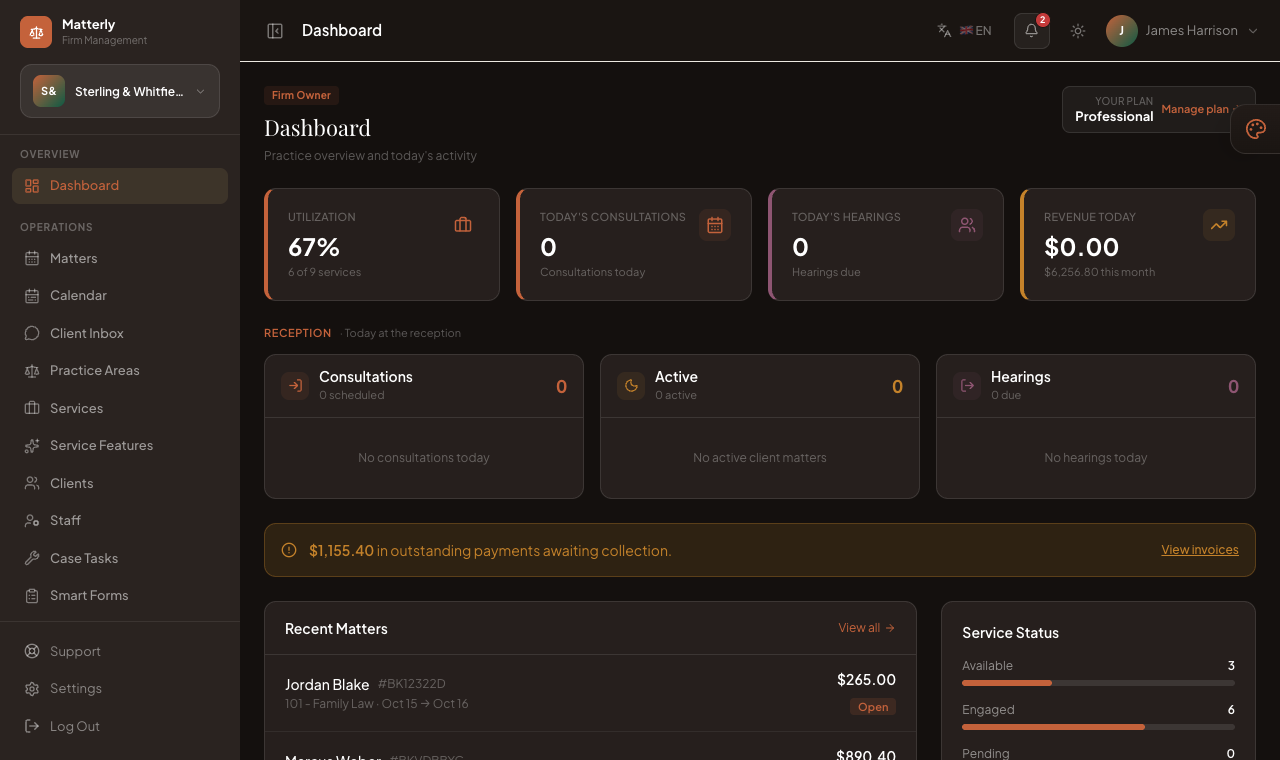
- You see the firm dashboard with an orange Impersonating … banner.
- Perform firm tasks as needed.
- Click Exit Impersonation to return to Super Admin.
#Related pages