End User Guide: Staff & Permissions
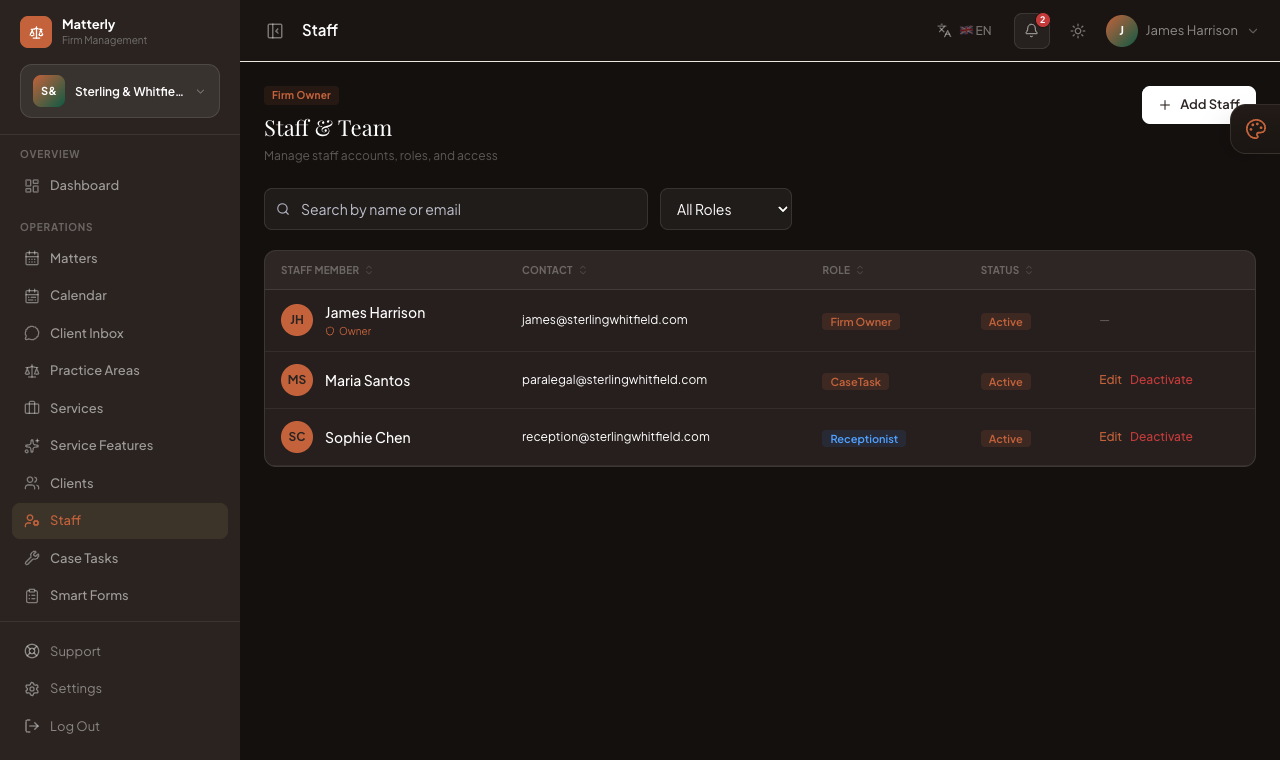
This chapter covers firm user management. LawyerPara does not provide a separate Super Admin “Users & Roles” module; firm accounts are managed here.
#Create a staff user
-
Sign in as Firm Admin (or a manager with Staff access).
-
Open Staff.
-
Click Add / Create.
-
Enter:
| Field |
Notes |
| Name |
Display name |
| Email |
Login email (unique) |
| Password |
Temporary password; ask them to change later |
| Role |
See roles below |
| Permissions |
Tick the modules they may use |
-
Save. Share the login URL (/login) and credentials securely.
The Add Staff form: set the account details and Role at the top; the Module Access section below is where you tick exactly which menus this person can use.
#Roles
Firm staff roles commonly include:
| Role |
Typical use |
| Manager |
Broad access; often same as firm admin style control |
| Receptionist |
Matters, clients, start/out |
| CaseTask |
CaseTask board and service status |
| Accountant |
Invoices, expenses, reports |
| Restaurant |
Limited ops if enabled for your workflows |
| Maintenance |
Maintenance-related case-tasks tasks |
Exact permission checkboxes matter more than the role label, so always set permissions deliberately.
#Permissions
Permissions map to sidebar menus, for example:
| Permission area |
Menus unlocked |
| Matters |
Matters, Client Inbox |
| Services |
Practice Areas |
| Clients |
Clients |
| CaseTask |
CaseTask |
| Invoices |
Invoices, Expenses |
| Reports |
Reports |
| AI |
AI Assistant, AI Staff, Knowledge Base |
| Website |
Website Builder, Languages, Campaigns, Reviews |
| Settings |
Settings, Staff |
| Office |
Office (rooms and AI helpers) |
| Approve AI drafts |
Confirm client emails drafted by the AI in Office |
If a menu is missing for a user, edit their staff record and enable the permission.
#Office: rooms and AI helpers
Office is a chat for your firm. The lobby is for firm-wide questions, and every matter has its own room, so notes and questions stay with the matter. Pick a room on the left, type a message and press Send. The AI helpers answer only when you mention them: type @ and choose one, for example @Deadlines what is due this week?. Any member of a room can switch it so the AI also replies to every message. Your colleagues see your messages and the AI replies, and unread counts show next to each room. The list shows the lobby and your 50 most recent matter rooms. To open any matter's room, choose Open Office room at the top of the matter page (in the More menu on smaller screens), or use a link ending in /admin/office?matter= plus the matter number. On the matter page, Communications, AI also lists drafts written in Office; choose Open in Office next to one to confirm or dismiss it in the room.
The AI helpers only look up what the person asking may see: without the Invoices permission you will not see the Billing helper, and without Matters you cannot ask for deadlines. Their replies are visible to everyone in the room. The AI can look things up and add a timeline note, but it never sends anything to a client by itself. When you ask for an email to a client, it writes a draft card in the room. A user with the Approve AI drafts permission (partners, office managers and the firm owner by default) can edit the draft, then choose Confirm and send to client, or Dismiss. Confirming queues the email, and it is delivered within about a minute. By default the client's name is replaced with "the client" in the case summary the AI receives. Anything you type in a room, and calendar or task titles, are sent as written, so avoid typing the client's name if that matters. A user with the Settings permission can change the redaction on the Office page. Each AI reply uses one AI credit from your plan.
#Firm assignment
- Each staff user belongs to one firm (the firm where they were created).
- They cannot switch to another firm from the sidebar.
- Super Admins use Impersonate on the Firms page to enter a firm without a staff login.
When Super Admin creates a firm, the form also creates that firm’s first admin user (manager). That person is the primary Firm Admin login.
#Best practices
- Use a unique email per person.
- Give receptionists matters + clients, not full settings.
- Give case-tasks only case-tasks access.
- Remove or disable staff who leave.
- Never share the Super Admin password with firm staff.
#Related pages