Firm Settings
#Overview
Firm Settings (/admin/settings) configures the practice: its details, tax, policies, how clients pay, the
public website and its address, integrations, API access and notifications. Each section has its own address, for
example /admin/settings/domain, so you can bookmark or share it.
#Tabs
| Tab |
Purpose |
| General |
Firm name, time zone, office hours, address and contact details, and how dates, times and numbers are shown |
| Tax |
The tax rate and label added to invoices, and whether prices already include tax |
| Policies |
Cancellation, client guidance, retainer and fee policies shown when clients book; optional deposit |
| Payments |
Pay at the office or Pay online when booking with Stripe, Razorpay, PayPal or LigdiCash |
| Integrations |
Connect WhatsApp so client messages arrive in the inbox (depends on your plan) |
| Theme |
Website template, accent colour, fonts, optional custom CSS, AI theme suggestions and a live preview |
| Domain |
Turn the public website on or off, and choose its address: free address, subdomain or your own domain |
| API Access |
Generate, replace or revoke a key for your own systems (depends on your plan) |
| Notifications |
Which events send staff an in-app alert and an email |
#Saving
Every tab ends in a save bar that stays at the bottom of the screen. It says No changes yet, Unsaved
changes (amber) or All changes saved (green), so you always know whether there is anything left to save.
Save each tab separately.
#Payments
- Choose Pay online when booking.
- Pick a provider card: Stripe, Razorpay, PayPal or LigdiCash (mobile money in West and Central
Africa). Each card shows whether it is already connected.
- Open Where do I find these keys? for step-by-step help, paste the keys, and copy the webhook link into the
provider's dashboard (LigdiCash needs no webhook). See Payments.
- Click Save Payments.
Secret keys are stored encrypted and never shown again; a Saved tag tells you one is on file.
#Domain
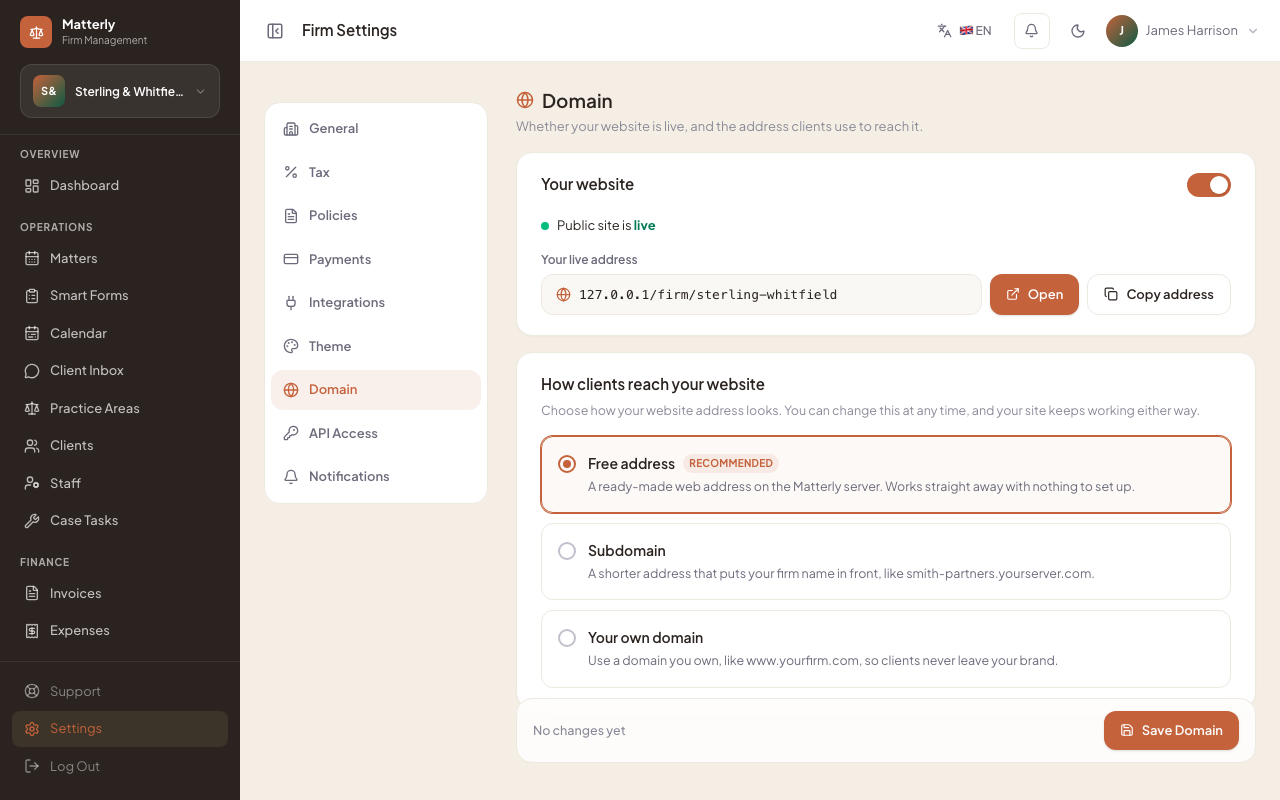
The Your website card shows whether the site is live or hidden, the address clients use, and
Open / Copy address buttons. Below it, choose how the address looks:
| Option |
Example |
| Free address (recommended) |
yourserver.com/firm/your-firm |
| Subdomain |
your-firm.yourserver.com |
| Your own domain |
www.yourfirm.com (depends on your plan; follow the DNS steps and use Check connection) |
#API Access
Generate a key, copy it straight away (it is shown only once), and use it with the listed endpoints. Replacing or
revoking a key asks you to confirm, because anything using the old key stops working immediately.
#Best practices
- Fill in General first: the time zone and date format are used across the app, invoices and emails.
- After changing Payments, make a test booking on the public site.
- Keep the website hidden on the Domain tab until your pages and practice areas are ready.